Client reports for agencies
Group campaigns by client and share a live, white-label report link with each one. What the report shows, how branding works and how to save it as a PDF.
Client reports are on the Agency plan.
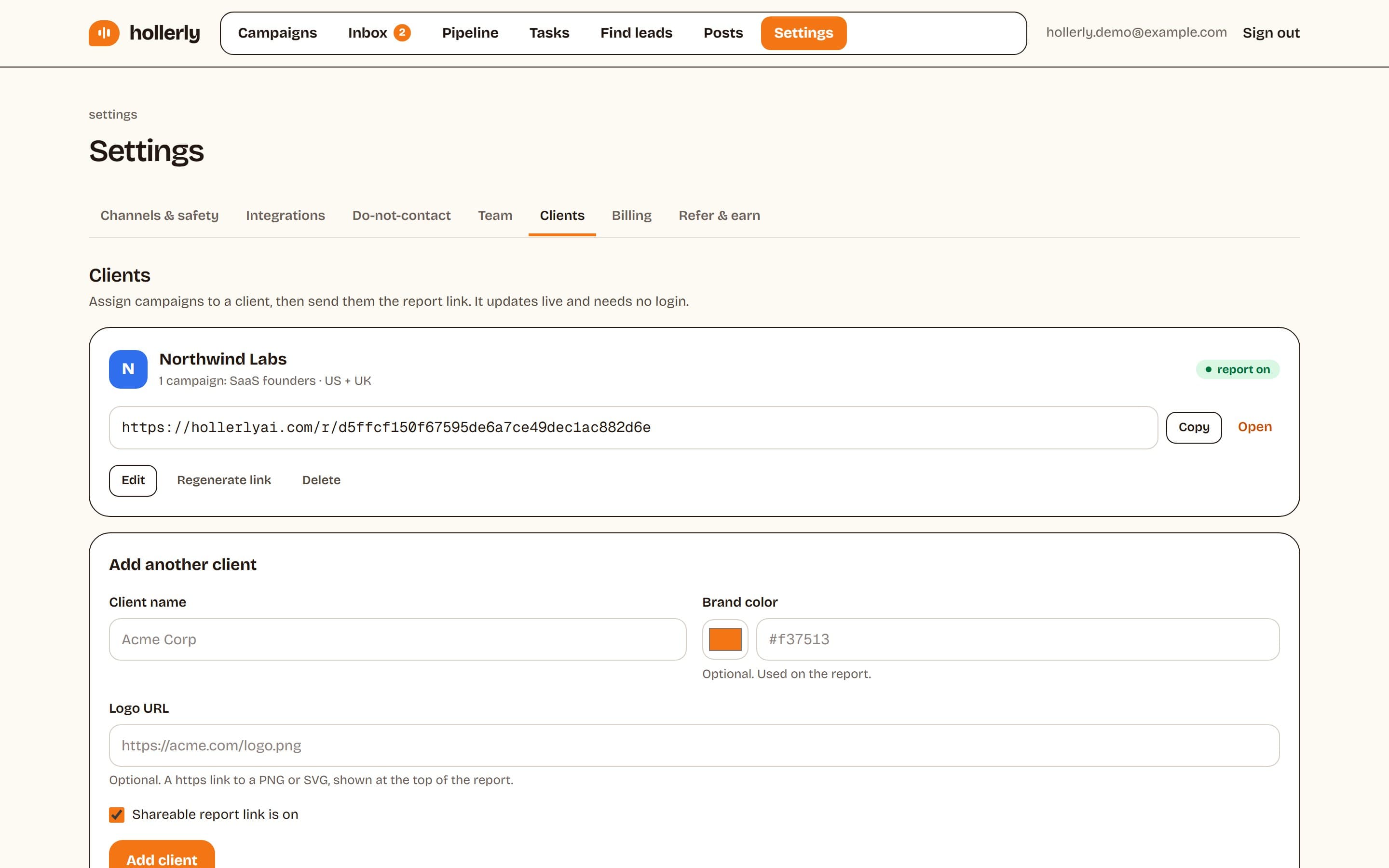
Add a client
- Go to Settings, Clients.
- Enter the Client name, and optionally a Brand color and Logo URL (an https link to a PNG or SVG).
- Leave Shareable report link is on ticked and click Add client.
- In each campaign's settings, pick the client under Client.
Use Copy or Open to share or preview the link. Regenerate link makes a new one; anyone with the old link loses access. Deleting a client keeps its campaigns, unassigned.
What the report shows
The report is a live page that needs no login and is hidden from search engines:
- All time: leads, invites sent, accepted, replied and meetings
- Funnel: leads, contacted, accepted on LinkedIn, replied and meetings
- Last 30 days: invites, LinkedIn messages, emails, new replies, meetings and total touches
- Campaigns for that client
- Recent replies: name, company and date only. Message text is never shown.
Branding and white label
Under Report branding, set your Agency name (shown as "Prepared by"), Agency color and Agency logo URL. Tick White label to hide "Powered by Hollerly". A client's own color and logo take priority over yours.
Save as PDF
Click Download PDF on the report. It opens your browser's print dialog with an A4 layout; choose "Save as PDF".