Team members, roles and workspaces
Invite teammates on the Agency plan, choose admin, member or viewer roles, manage seats and switch between workspaces when you belong to several teams.
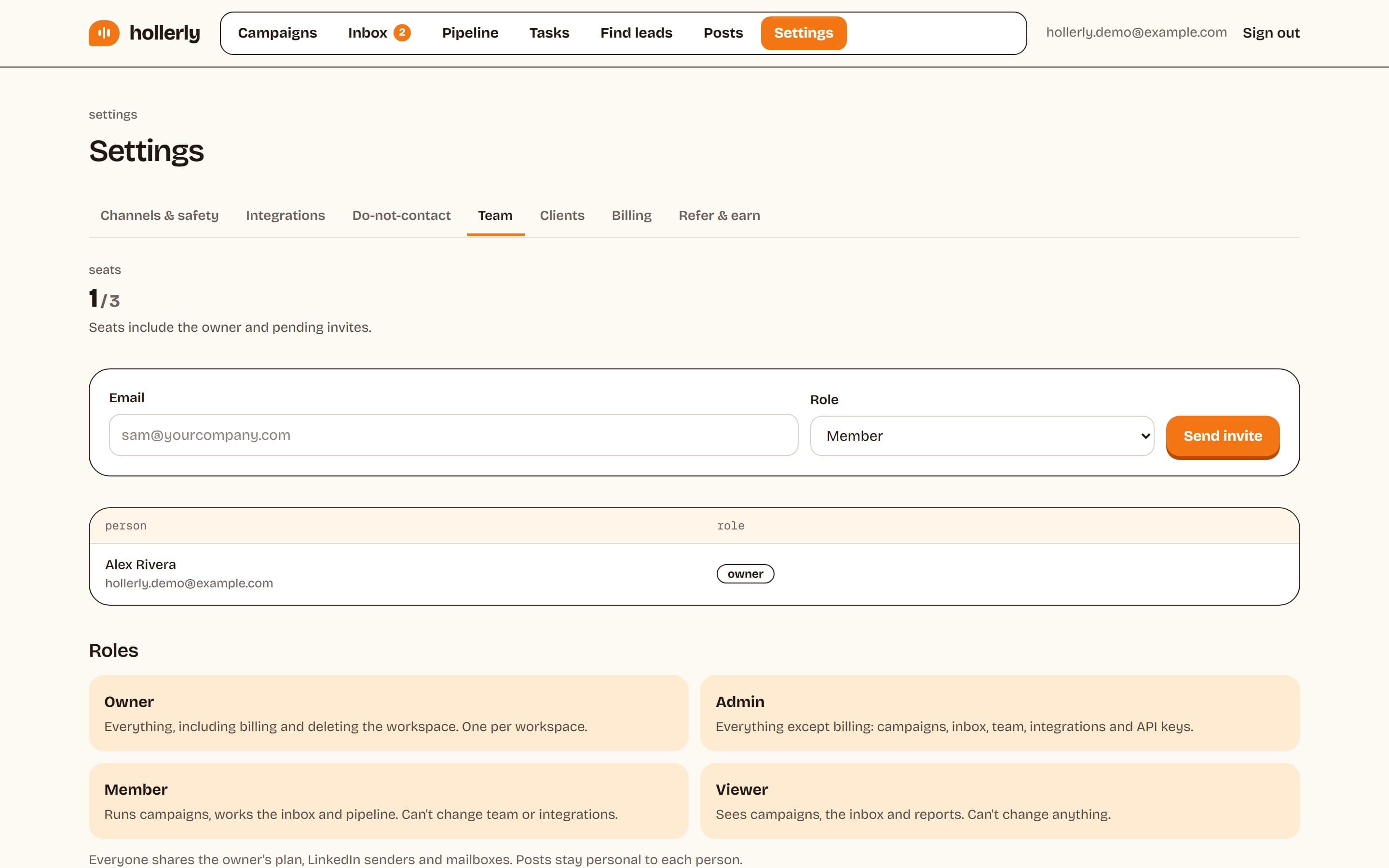
Teammates are on the Agency plan, which includes 3 seats. Seats count the owner and any pending invites.
Roles
- Owner: everything, including billing. One per workspace.
- Admin: everything except billing: campaigns, inbox, team, integrations and API keys.
- Member: runs campaigns and works the inbox and pipeline. Can't change the team or integrations.
- Viewer: sees campaigns, the inbox and reports. Can't change anything.
Everyone shares the owner's plan, LinkedIn senders and mailbox. LinkedIn posts stay personal to each person.
Invite someone
- Go to Settings, Team.
- Enter their Email, pick a Role and click Send invite.
- They get an email with a join link. You can also click Copy link and send it yourself.
They sign in with the invited email address and click Accept invite. If they're signed in with a different email, they'll see "This invite is for a different email".
Pending invites show Copy link, Resend and Cancel. To free a seat, cancel an invite or click Remove on a member. Owners and admins can change anyone's role.
Switching workspaces
If you belong to more than one workspace, for example your own and a client's, a switcher appears in the dashboard header. It lists My workspace and each team you've joined, with your role. The Team page also has a Workspaces card with Switch buttons. Hollerly remembers your last choice in this browser.