Connect your LinkedIn account
Connect LinkedIn to Hollerly with your email and password or an li_at session cookie, add your 2FA key, enter verification codes and pick your country.
Hollerly has no Chrome extension. You connect LinkedIn once, and Hollerly signs in from a dedicated cloud browser with its own IP in your country. Your campaigns then run there with your laptop closed.
Where to connect
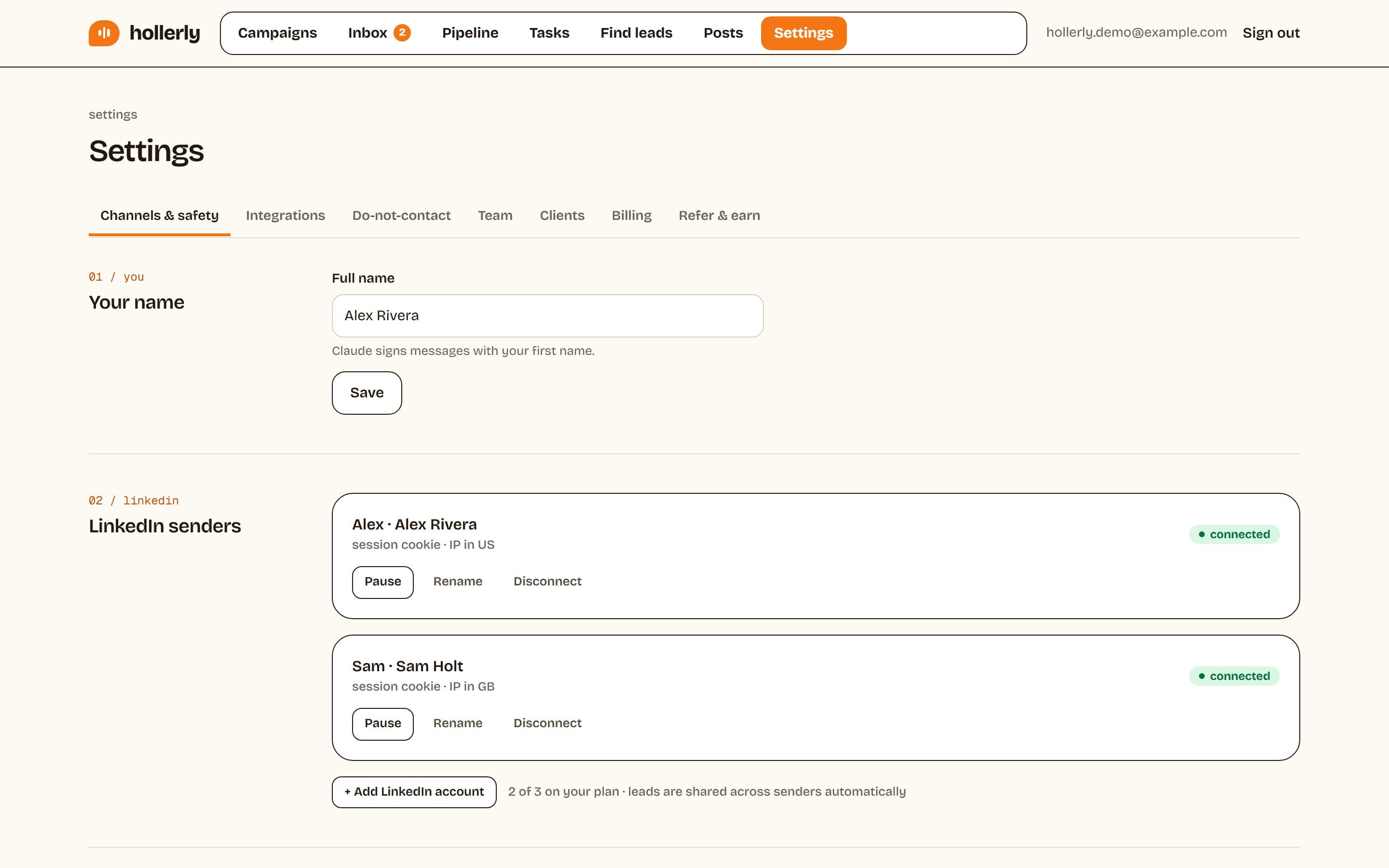
Go to Settings, Channels & safety, section LinkedIn account. Only the workspace owner or an admin can connect accounts.
Option 1: Email and password (recommended)
- Choose the Email + password tab.
- Enter your LinkedIn email and LinkedIn password.
- If you use an authenticator app for two-step verification, paste the setup key into 2FA secret key (recommended). You find it in LinkedIn under Settings, Sign in & security, Two-step verification, when you add an authenticator app. With the key saved, Hollerly answers sign-in checks itself.
- Pick the Country you usually log in from. Your dedicated IP is placed there.
- Tick the box confirming you understand LinkedIn's rules on automation, then click Connect LinkedIn.
You'll see "Connecting. This usually takes under a minute." The page updates on its own.
Option 2: Session cookie
- In Chrome, open linkedin.com while signed in.
- Open DevTools, then Application, Cookies, www.linkedin.com, and copy the value of li_at.
- In Hollerly, choose the Session cookie tab, paste it into li_at cookie, pick your country and click Connect LinkedIn.
A cookie session ends when you log out of LinkedIn in that browser, so you may need to paste a fresh one later. Use this option if LinkedIn shows a CAPTCHA during password sign-in, because Hollerly never tries to solve CAPTCHAs.
Verification codes
If LinkedIn asks for a code and no 2FA key is saved, the account shows needs code and a box appears on the account card: "LinkedIn sent a verification code by email" (or by text message, or in your authenticator app). Type the code and click Submit code. You have 10 minutes, and up to 3 tries. If LinkedIn asks you to approve the sign-in in its mobile app instead, open the app and approve it; the page updates once it goes through. More in LinkedIn account needs a verification code.
How your login is stored
Your password, 2FA key and cookie are encrypted with AES-256 and are never shown again, not even to you. Click Disconnect on the account card to delete them. The message reads "Disconnected. Your LinkedIn login details were deleted."