Pipeline, tasks and meetings
Track deals from reply to won on the pipeline board, keep follow-ups on time with tasks, and count booked meetings automatically from Calendly or Cal.com.
The pipeline board (Pro)
Pipeline shows your conversations as deals in six stages: Replied, Interested, Meeting, Proposal, Won and Lost. Drag a card between columns, or change its stage on the card. Add a deal value in US dollars on the lead's page to see totals for open deals, meetings, proposals and won.
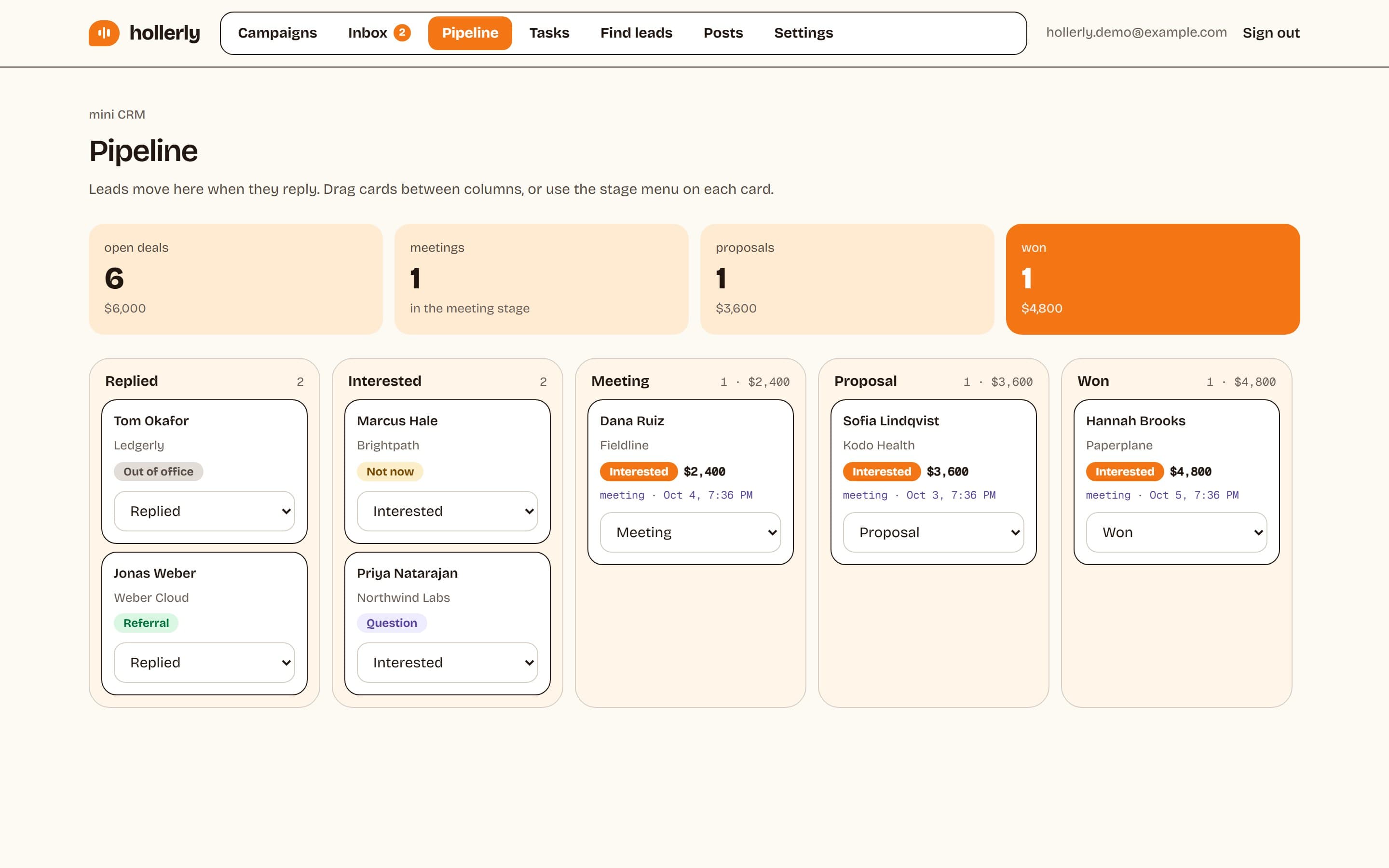
Leads join the pipeline on their first reply, as Replied, or as Interested when the reply is tagged Interested.
The lead page
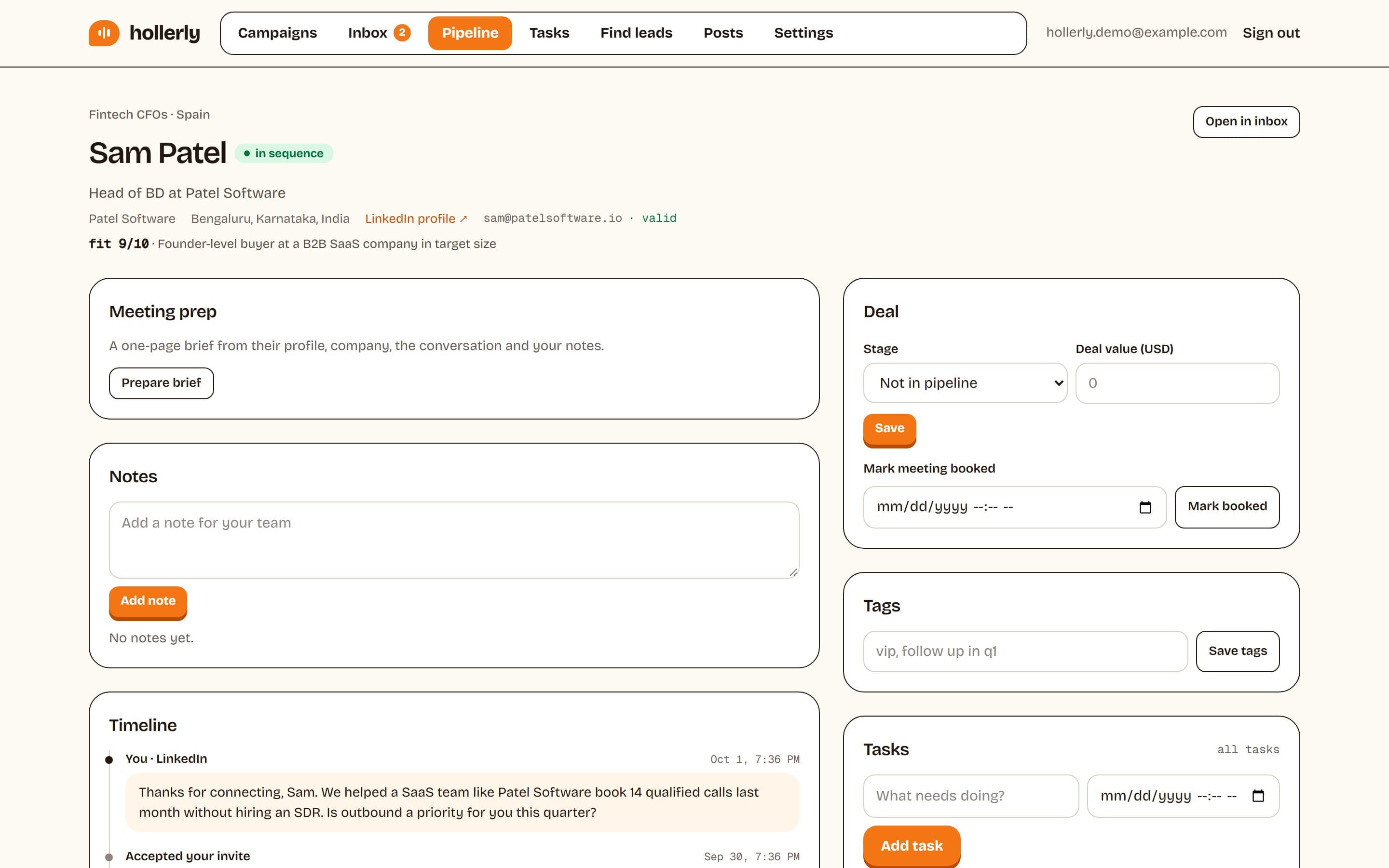
Click any lead to see their profile, a timeline of every step and reply, and company details. You can add notes, tags, tasks and a deal value, mark a meeting as booked, sync the lead to your CRM, or add them to the do-not-contact list.
Tasks
Tasks lists follow-ups under Overdue, Today, Upcoming and Done. Add a task with what needs doing, a due date and time, and who it's for, and link it to a lead if you like. Filter by Everyone or Mine. Hollerly also adds tasks for you when someone replies "not now".
Meeting tracking (Pro)
- Add your Booking link under Settings, Integrations. It fills the booking_link variable in messages and AI drafts.
- Copy the Calendly or Cal.com webhook URL shown on the same page.
- In Calendly, create a webhook (paid Calendly plans) with the invitee created event. In Cal.com, go to Settings, Developer, Webhooks and add one for "Booking created".
When someone books with the same email as a lead, Hollerly counts the meeting, moves the lead to Meeting on the pipeline and stops their sequence, so no more campaign steps go out to them. It never moves a deal back from Proposal or Won. You can also click Mark booked on a lead's page, which does the same.
Meeting prep briefs (Pro)
On a lead's page, click Prepare brief. Claude writes a one-page brief: who they are, their company, what they said so far, likely priorities, three questions to ask, how your offer fits and what to watch out for.