How to Export LinkedIn Sales Navigator List Leads Safely
If you want to export LinkedIn Sales Navigator list data to a spreadsheet or CRM, the first thing to know is that LinkedIn doesn't support it on most plans. Its help center says plainly that it "currently doesn't offer the option to export account and lead information from Sales Navigator into a CSV or XLS file." Everything else is either an official CRM sync on the top plan, manual work, or a third-party tool that works against LinkedIn's terms.
This guide compares every method honestly: what it costs, how much risk it carries for your LinkedIn account, and what you actually get. We checked LinkedIn's help pages on October 2, 2026.
Export LinkedIn Sales Navigator list: the options compared
| Method | Plan needed | Account risk | What you get |
|---|---|---|---|
| CRM sync (official) | Advanced Plus | None | Leads and accounts synced with Salesforce, Dynamics or HubSpot |
| Copy by hand | Any | None | Whatever you copy; slow |
| Scraper or export extension | Any | High: against LinkedIn's terms | CSV of names, titles, companies, profile URLs |
| Cloud scraper with your session | Any | High: against LinkedIn's terms | Same, often with enrichment |
| Outreach tool that imports a search | Any | Lower if paced like a person, never zero | Leads inside the tool's campaigns, synced to your CRM |
Which one is right depends on what you want the list for. If you want to contact the people on it, you may not need a spreadsheet at all. If you want it for reporting, territory planning or a CRM, the official sync is the only route with no account risk.
Why LinkedIn restricts exports
LinkedIn's business depends on members trusting how their profile data is used, and on companies paying for access to it. Bulk copying undermines both, so LinkedIn invests in detecting it. Its help center says it is "constantly working to improve" its defenses against scraping and automation tools. Expect any export trick that works today to be less reliable tomorrow.
Export lists from Sales Navigator the official way
There are two ways to export lists from Sales Navigator that LinkedIn supports, and one of them is only partly an export.
1. CRM sync on Advanced Plus
LinkedIn's help center says Advanced Plus can sync leads and accounts between Sales Navigator and Salesforce, Microsoft Dynamics or HubSpot, updated in real time. You can also create leads and contacts in the CRM from Sales Navigator. Advanced Plus is priced by quote, so this route suits larger teams already using one of those CRMs.
2. Manual copy
For 20 or 30 leads, opening each profile and copying name, title, company and URL into a sheet is fine. It's slow, but it's safe and you'll read each profile, which makes your outreach better.
What doesn't work
There's no Export button on lead lists in Core or Advanced. CSV upload on Advanced works the other way: you can upload account lists into Sales Navigator, not download leads out of it.
LinkedIn Sales Navigator scraper: how it works and the risks
A LinkedIn Sales Navigator scraper (often sold as a Sales Navigator export tool) reads the search results or lead list pages while you're logged in and saves the data to a file. Most work as a Chrome extension running in your browser. Some run in the cloud using your LinkedIn session cookie. Many add email finding on top.
What LinkedIn says
LinkedIn's User Agreement (section 8.2) says members must not use "software, devices, scripts, robots or any other means or processes (such as crawlers, browser plugins and add-ons or any other technology) to scrape or copy the Services." Its help center says members who use such tools "risk having their accounts restricted or shut down."
The practical risks
- Account restrictions. Loading hundreds of profiles or result pages quickly is easy for LinkedIn to spot, and restrictions can last from days to permanently.
- Your session in someone else's cloud. Cloud scrapers need your login cookie. Ask where it's stored and who can access it.
- Stale data. A CSV is a snapshot. Job titles change, and in three months part of the list is wrong.
- Data protection. If you collect personal data about people in the EU or UK, GDPR applies to you, not just the tool. More on that in our LinkedIn scraper guide.
Best LinkedIn Sales Navigator scraper: how to judge one
We won't rank tools we haven't independently tested. If you decide to use a Sales Navigator scraper anyway, these questions separate careful tools from risky ones:
- How fast does it load pages? Look for daily caps and pauses, not "export 2,500 leads in minutes".
- Does it run in your browser or the cloud? Browser extensions are visible to LinkedIn's pages. Cloud tools hold your session.
- Where does your cookie or password live, and is it encrypted and deleted when you disconnect?
- Where does the email data come from? Ask whether emails are verified and how the vendor handles GDPR.
- What happens when LinkedIn shows a warning? A good tool stops; a bad one keeps going.
The best LinkedIn Sales Navigator scraper for most people is the one they don't need, because they can work with the leads where they found them.
Use your Sales Navigator leads without exporting them
Most people export a Sales Navigator list for one reason: to reach out to the people on it. You can do that without building a spreadsheet.
How it works in Hollerly
- Build or save a search in Sales Navigator (or LinkedIn's regular people search).
- Paste the search URL into a Hollerly campaign. Hollerly adds the leads by working through the search inside your own LinkedIn account at a human pace, not by bulk scraping.
- Leads already in another campaign or on your do-not-contact list are skipped.
- Claude writes each connection note and message from the person's profile, latest post and company website. You approve the first five, then it runs.
- On Pro, Hollerly finds and verifies work emails (200 credits a month), follows up from your own mailbox, and syncs with HubSpot or Pipedrive. Webhooks, Zapier and Make cover other tools.
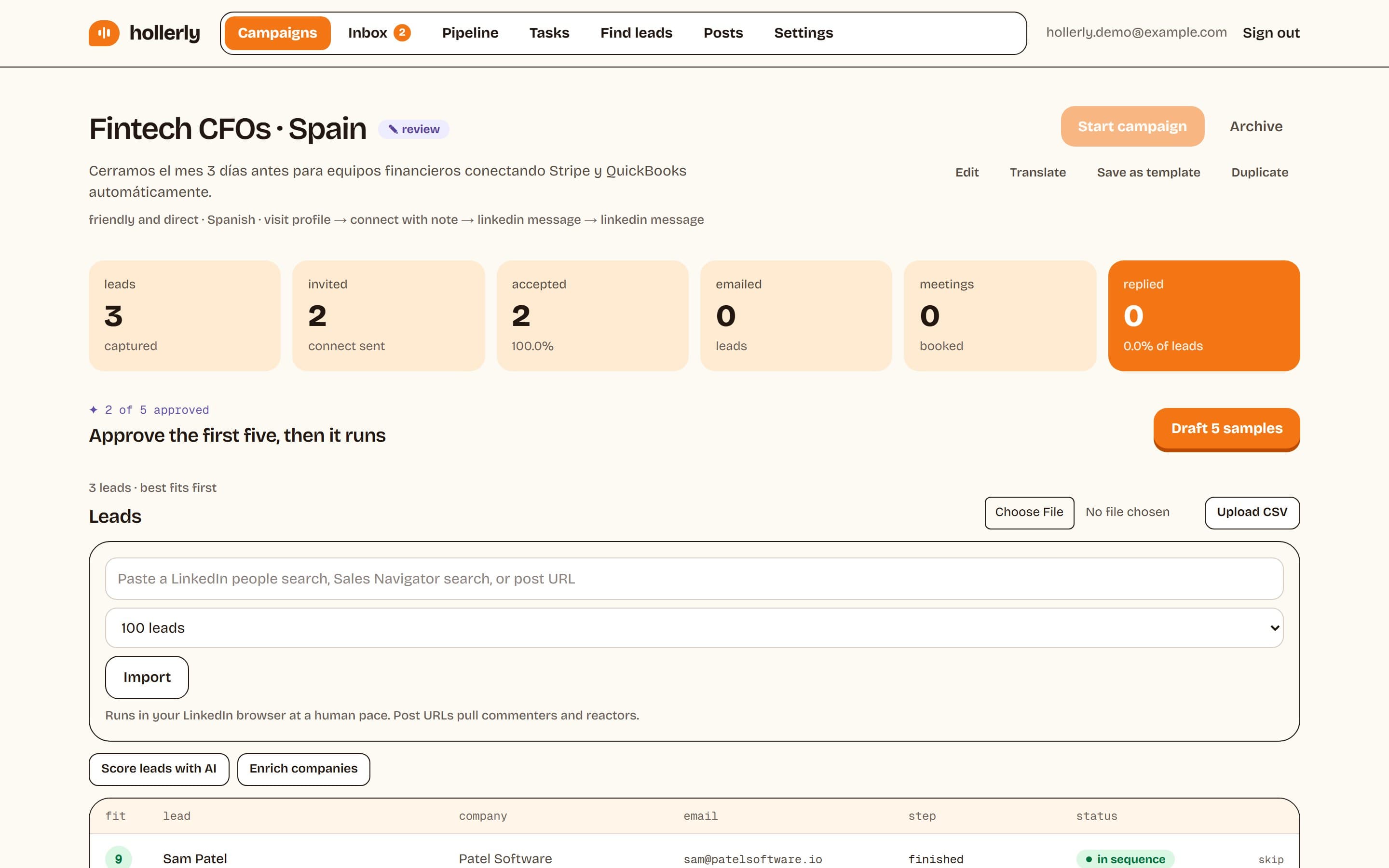
You can also add leads from a post URL (people who commented or reacted) or upload a CSV of LinkedIn URLs and emails you already have. See LinkedIn prospecting and pricing.
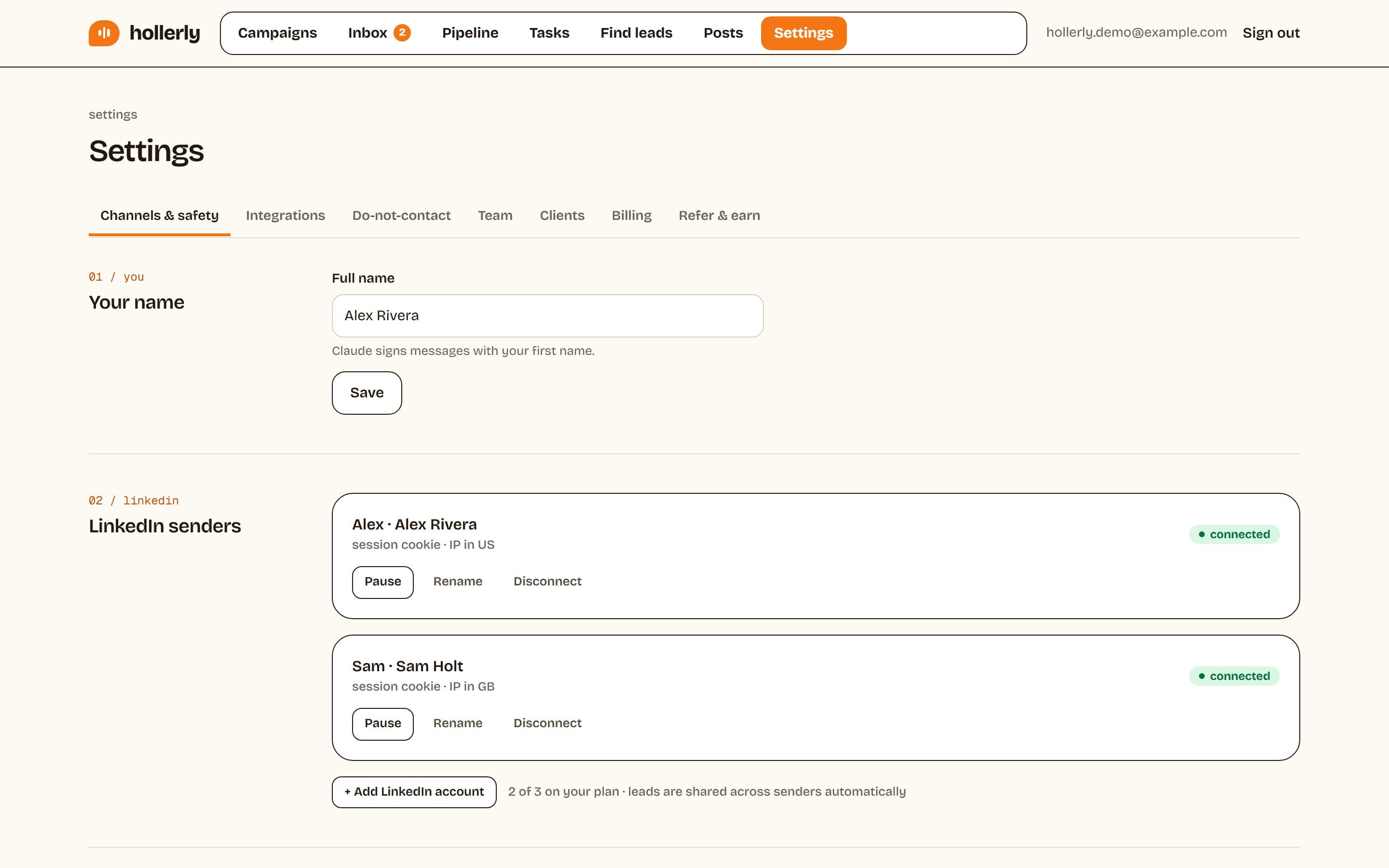
Honest note: Hollerly is still a third-party tool acting in your LinkedIn account, which LinkedIn's agreement doesn't allow. It reduces the risk with daily caps, working hours, random gaps and a dedicated IP in your country, and it pauses automatically at the first warning. It doesn't remove the risk. Read LinkedIn automation safety for the details.
Tips for cleaner Sales Navigator lists
Whatever method you use, the list quality matters more than the export.
- Narrow before you save. 300 well-filtered leads beat 2,500 loose ones. Use seniority, function, headcount and "changed jobs in past 90 days".
- Exclude people you've already contacted, using Sales Navigator's filters where they allow it, or your outreach tool's dedupe, so nobody hears from you twice.
- Prefer active people. The "posted on LinkedIn" filter finds people who read their messages.
- Refresh weekly. Saved searches surface new matches. A one-off export goes stale.
- Remove obvious mismatches by hand before outreach. A minute of review saves your acceptance rate.
If you're deciding whether you need Sales Navigator at all, see what is LinkedIn Sales Navigator.
Getting email addresses for Sales Navigator leads
Sales Navigator doesn't show email addresses, which is often the real reason people want an export. There are three honest ways to get them:
- Ask. Once someone accepts your invitation and replies, asking for the best email to send something to is normal.
- Check the profile. Some members share an email in their contact info, visible to their connections.
- Use an email finder (such as our LinkedIn email finder) that looks up a work address from name and company domain, then verifies it before you send.
In Hollerly Pro, the email finder and verifier is built in (200 credits a month on Pro, 500 on Agency). For leads who don't accept your LinkedIn invitation, a sequence can switch to email from your own Gmail, Outlook or SMTP mailbox, with an unsubscribe link and low daily volume.
Respect people's data
Whatever method you use, keep only what you need, honor opt-outs straight away, and remember that data protection laws like GDPR apply to the contact data you hold, not just to the tool that found it.
FAQ
+Can you export a list from LinkedIn Sales Navigator?
Not to CSV or Excel. LinkedIn's help center says Sales Navigator doesn't offer CSV or XLS export of lead and account information. The Advanced Plus plan can sync leads and accounts with Salesforce, Microsoft Dynamics and HubSpot. Other export methods use third-party tools that go against LinkedIn's terms.
+Is it legal to scrape Sales Navigator?
Scraping Sales Navigator breaks LinkedIn's User Agreement, which can get your account restricted. Whether it's also unlawful depends on your country and how you use the data. Data protection laws like GDPR apply to personal data you collect. Get legal advice for your situation; this isn't legal advice.
+Will a Sales Navigator scraper get my account banned?
It can. LinkedIn says members using scraping or automation tools risk having their accounts restricted or shut down. Tools that load many pages quickly are the most likely to trigger restrictions. Slower tools with daily caps reduce the risk, but none can promise your account is safe.
Get replies without the busywork
Hollerly finds the people, writes every message with AI and follows up on LinkedIn and email until they reply. Runs in the cloud, from $19 a month.
Start my 7-day free trial