Add leads from LinkedIn or a CSV
Add leads to a campaign from a LinkedIn search, a Sales Navigator search or list, the people engaging with a post, or a CSV of profile URLs and emails.
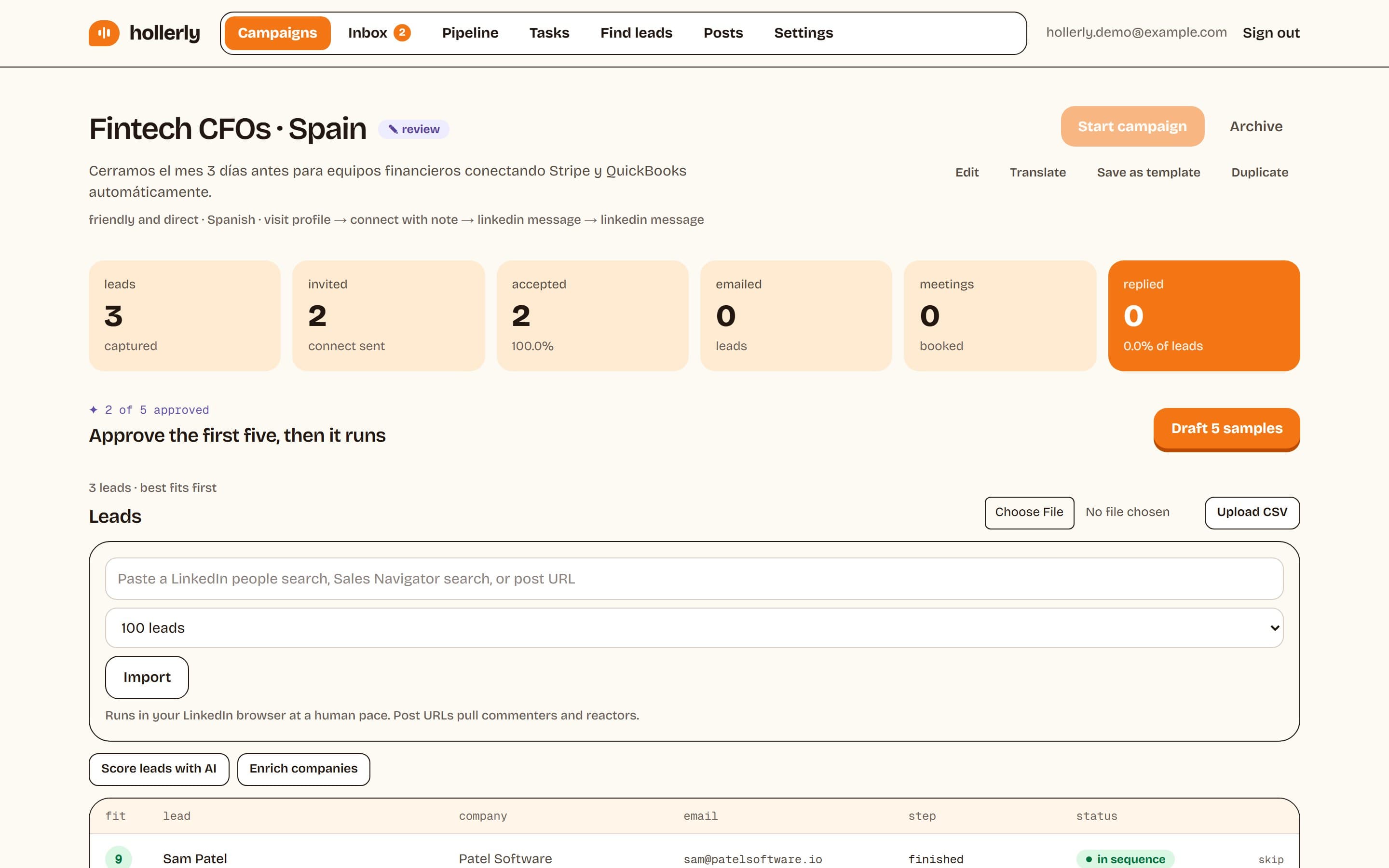
Leads are added inside a campaign. Open the campaign page and use the import box.
From a LinkedIn URL
Paste one of these into Paste a LinkedIn people search, Sales Navigator search, or post URL:
- A LinkedIn people search (a URL with /search/results/people)
- A Sales Navigator people search or lead list
- A LinkedIn post URL. Hollerly pulls the people who commented on and reacted to it, which is a good way to reach people already talking about your topic.
Pick how many to import (25, 100, 250 or 500) and click Import. The import runs in your LinkedIn cloud browser at a human pace, up to 10 pages of results, so leads appear within a few minutes. You'll see each import's status and how many leads were found and added.
You need a connected LinkedIn account, and the box only shows on campaigns with LinkedIn steps.
From a CSV file
Click Upload CSV. Files can be up to 2 MB, and the first 2,000 rows are used. Each row needs a LinkedIn profile URL, an email, or both. Hollerly recognizes these column names (not case sensitive):
- Profile URL: profile_url, linkedin_url, url, linkedin or profile
- Email: email, email_address, work_email or e_mail
- Name: full_name or name, or first_name and last_name
- Headline: headline, title or job_title
- Company: company, company_name or organization
- Location: location or city
- Website: domain, website, company_domain or company_website
Rows with only an email run the email steps only.
Duplicates and your do-not-contact list
Hollerly skips anyone on your do-not-contact list, and anyone already in another campaign in your workspace, matched by LinkedIn profile or email. The result tells you how many were skipped, for example "Imported 80 leads; skipped 3 on do-not-contact, 12 already contacted in another campaign". To allow people who are already in other campaigns, tick Allow people already in other campaigns in the campaign settings.