Do-not-contact list and unsubscribes
Keep people, emails, domains and companies out of every campaign. Add entries one at a time, by paste or by CSV, and see how unsubscribes get added.
The do-not-contact list is on every plan, under Settings, Do-not-contact. Nobody on it gets an invite, message or email from any campaign in your workspace.
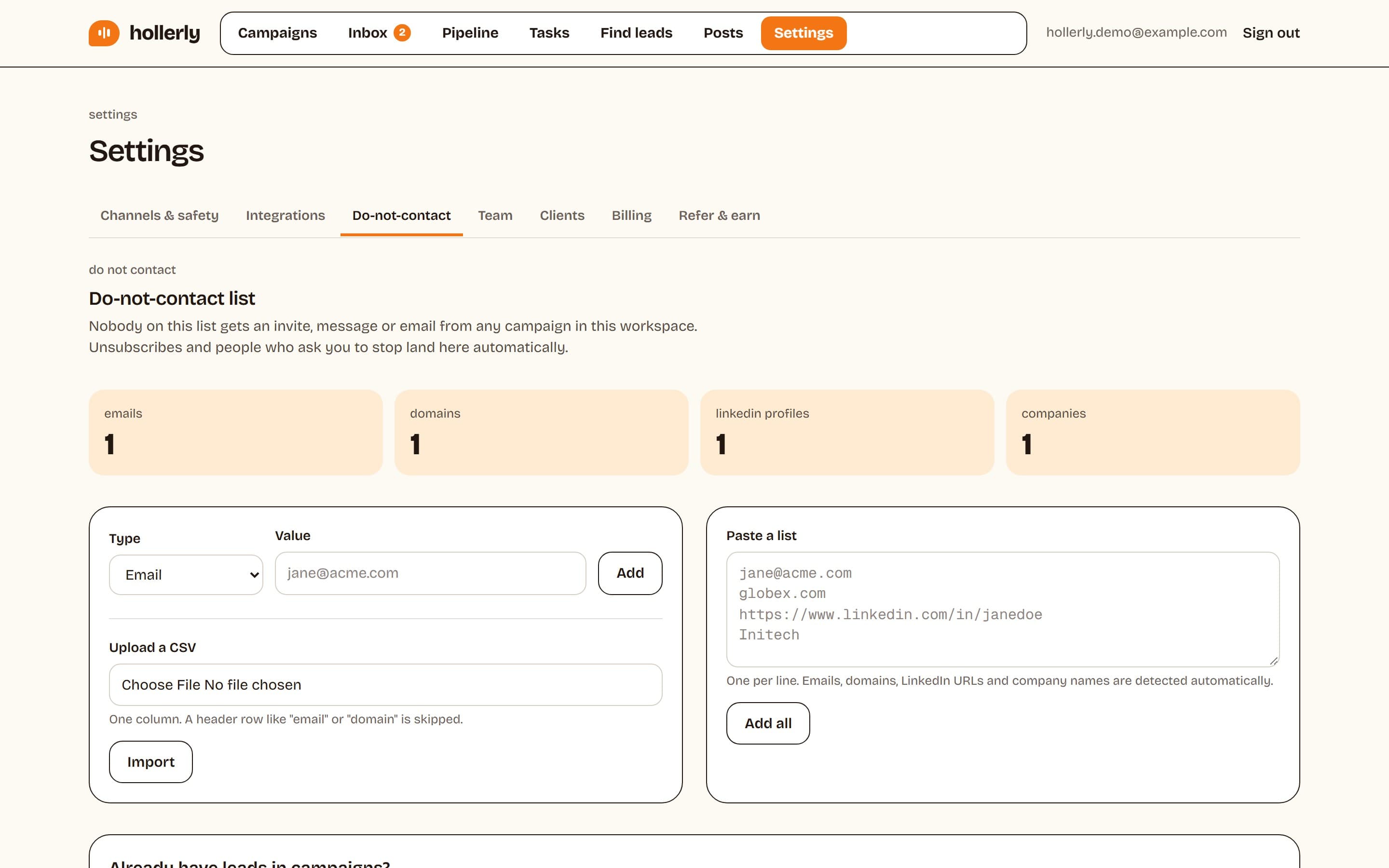
What you can block
- Email: one address.
- Domain: everyone at a company domain, matched on email and company website.
- LinkedIn profile: one person, by profile URL.
- Company: by company name, not case sensitive.
Ways to add entries
- Add one entry with a type and value.
- Paste a list, one per line, and click Add all. Hollerly detects the type of each line.
- Upload a CSV or text file, up to 2 MB and 10,000 lines. Only the first column is read, and a header row is skipped.
Good candidates: existing customers, partners, competitors and anyone who asked not to be contacted.
People already in campaigns
New entries are checked before every send, so blocked people are skipped from then on. To mark matching leads as skipped right away, click Skip matching leads now. Leads that are blocked when they're imported are never added at all.
Unsubscribes are automatic
People land on the list on their own when:
- They click the unsubscribe link in one of your emails and confirm. Mail apps' one-click unsubscribe buttons work too. They see "You're unsubscribed".
- They reply asking you to stop, and the reply is tagged Unsubscribe.
- You click Add to do-not-contact on a lead's page.
Each entry shows where it came from: manual, import, unsubscribe or reply. Click Remove to take an entry off the list.