Free LinkedIn Text Formatter
This free LinkedIn text formatter turns plain words into bold or italic text you can paste into a post, comment, headline or About section. Type or paste below, select the words you want to stand out, click Bold or Italic, then copy.
No signup, nothing stored. It works because the styled letters are Unicode characters, so they keep their look wherever you paste them.
LinkedIn formatter: how this LinkedIn text formatter works
LinkedIn's post box has no bold or italic button for regular posts, comments or profile fields. A LinkedIn formatter gets around that by swapping each letter for a look-alike from the Unicode "Mathematical Alphanumeric Symbols" block. 𝗛𝗲𝗹𝗹𝗼 in bold is not the word Hello with a style on top. It's five different characters that happen to look bold.
That's why the result survives copy and paste into LinkedIn, Slack or anywhere else that shows Unicode. It's also why you should use it lightly (more on that below).
What the formatter supports
- Bold letters and numbers (A to Z, a to z, 0 to 9).
- Italic letters (numbers stay upright, because Unicode has no italic digits).
- Everything else, like punctuation, emojis and accented letters, is left as it is.
LinkedIn post formatter tips
Good LinkedIn post formatting is mostly about white space, not styles. Use this LinkedIn post formatter for the few words that carry the post, and let line breaks do the rest. Keep LinkedIn post bold text formatting to a hook, a number or a label.
- Bold one line, not a paragraph. The hook or the key number. If everything is bold, nothing is.
- Keep your first two lines plain enough to read fast. LinkedIn cuts the post at "...more" after about three lines. Check where the cut falls with the LinkedIn post preview.
- Use italics for asides or quotes, not for whole sentences you want people to search for.
- Leave a blank line between short paragraphs. It does more for readability than any font.
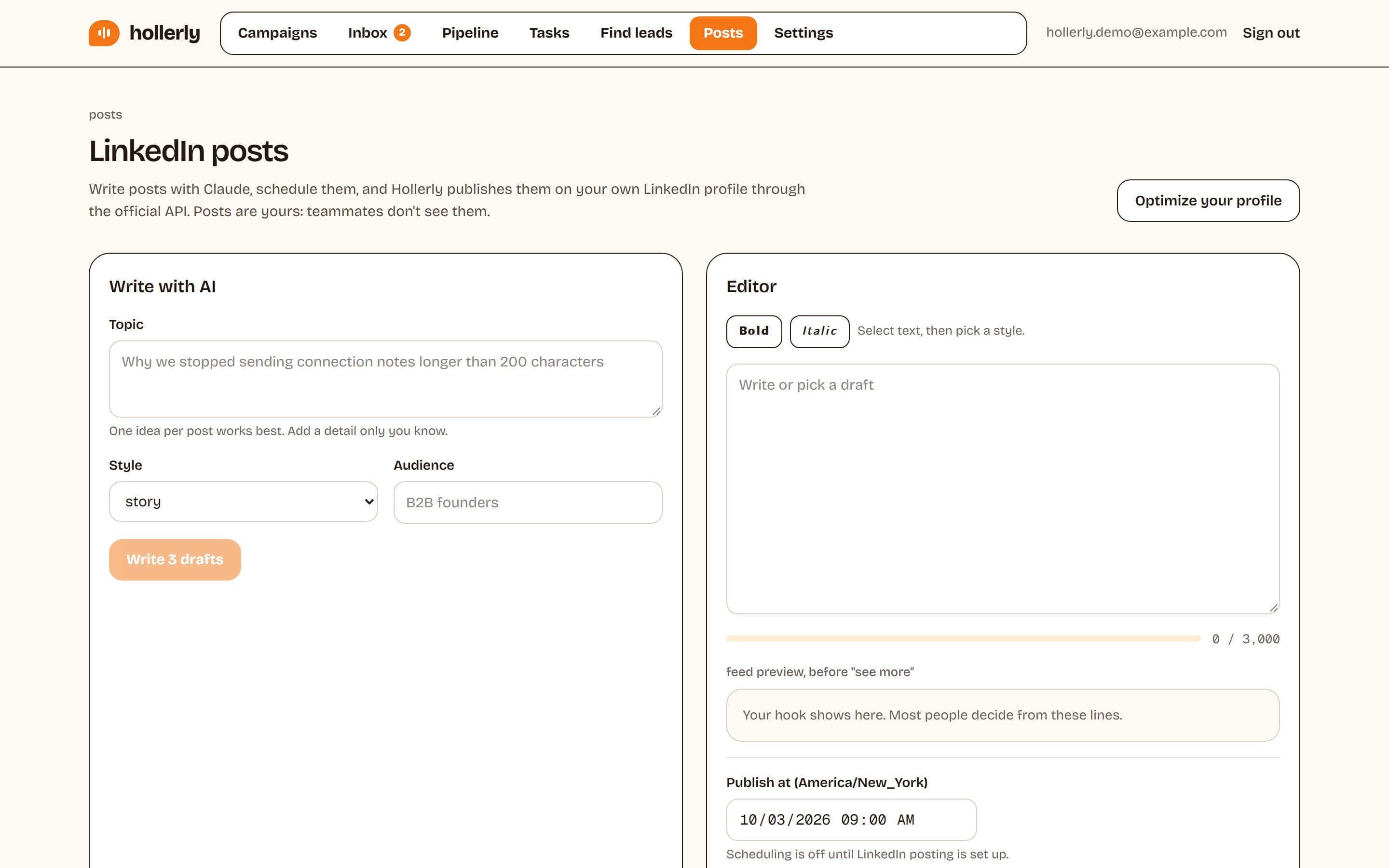
Writing the post is the harder part. The AI LinkedIn post generator gives you three drafts from one idea, and you can style the hook here afterwards.
LinkedIn bold text: where you can use it
LinkedIn has no native bold button for posts, so LinkedIn post bold text always comes from Unicode characters like the ones this tool makes. They paste into almost every text field on LinkedIn:
| Where | Bold works? | Worth it? |
|---|---|---|
| Posts | Yes | Yes, for a hook or one key line |
| Comments | Yes | Sparingly |
| Headline | Yes | Rarely: styled letters don't match LinkedIn search |
| About section | Yes | For short section labels only |
| Experience descriptions | Yes | For short labels only |
| Messages and connection notes | Yes | Usually no, it reads like marketing |
One catch: each styled letter counts as one character in most counters, but some fields count it as two. If you're close to a limit, check with the LinkedIn character counter.
For connection notes and follow-ups, plain text works better. If you send a lot of them, Hollerly's LinkedIn message automation writes each one from the prospect's profile and sends it inside safe daily limits.
LinkedIn formatting and accessibility
LinkedIn text formatting with Unicode has two real costs, and you should know them before you bold half a post.
Screen readers
Some screen readers read styled letters one by one, or skip them. A bold hook can become "mathematical bold capital H, mathematical bold small e..." for a blind reader. Keep styled text to a few words and never put essential information only in bold.
Search
LinkedIn search treats 𝗦𝗮𝗹𝗲𝘀 and Sales as different words. Don't style the keywords you want to be found for, especially in your headline and About section.
How to bold text in LinkedIn post?
Here is how to make text bold in LinkedIn post drafts in four steps, on desktop or phone:
- Write your post in the box at the top of this page, or paste a draft.
- Select the words you want in bold. If you select nothing, the whole text is styled.
- Click Bold (or Italic), then click Copy text.
- Open LinkedIn, start a post and paste. The bold letters come through as they are.
How do you bold text in a LinkedIn post on a phone?
The same way: open this page in your phone's browser, style the text, tap Copy text, then switch to the LinkedIn app and paste into the post box.
How to make bold text in LinkedIn post without a tool
Can you bold text in LinkedIn posts with LinkedIn's own post box? Not today. Long-form LinkedIn articles and newsletters do have a bold button, but regular posts, comments and profile fields don't, so a LinkedIn bold text generator like this one is the usual route.
How to use the tool
- Paste or type your text in the box.
- Highlight a word or line and press Bold or Italic. Repeat for other parts.
- Press Copy text and paste it into LinkedIn.
- Press Clear to start over. Nothing is saved or sent anywhere.
To undo a style, select the text and use your browser's undo (Ctrl+Z or Cmd+Z), or retype the words.
FAQ
+How to bold text in LinkedIn post?
LinkedIn's post box has no bold button, so use a LinkedIn text formatter. Paste your draft into the tool above, select the words, click Bold, then copy and paste the text into LinkedIn. The bold letters are Unicode characters, so they keep their look in the post on desktop and mobile.
+Can you bold text in a LinkedIn post?
Yes, but not with LinkedIn's own editor. Regular posts have no formatting buttons, so people paste in bold Unicode letters from a formatter like this one. It works in posts, comments and profile fields. Use it for a few words only, because screen readers and LinkedIn search handle styled letters poorly.
+Can you bold text on LinkedIn?
Not with LinkedIn's own tools in regular posts, comments or profile fields, since there is no native bold button. You can paste bold Unicode letters from a formatter instead. LinkedIn articles and newsletters are the exception, with a bold button in the editor. Keep styled text short, because screen readers and search may not read it well.
+How to bold text on LinkedIn?
Anywhere on LinkedIn, the method is the same: style the words in a LinkedIn bold text formatter, copy them and paste them into the field. That covers posts, comments, your headline, About section and experience descriptions. LinkedIn articles and newsletters are the exception, with their own bold button in the editor.
+How do I bold text in a LinkedIn post on my phone?
Open this page in your phone's browser, paste or type the post, select the words to bold and tap Bold. Tap Copy text, switch to the LinkedIn app, start a post and paste. The styled letters carry over, so the post looks the same on desktop and in the app.
+Can I bold text in LinkedIn post comments and messages?
Yes. Bold Unicode text pastes into comments, messages and connection notes too. In comments, a bolded word can help a key point stand out. In messages and connection notes it usually looks like marketing copy, so plain text tends to get more replies from people who don't know you yet.
+Is bold text on LinkedIn bad for reach or accessibility?
There's no published evidence that LinkedIn ranks posts lower for bold text. The real costs are accessibility and search: some screen readers spell styled letters out one by one, and LinkedIn search doesn't match them to normal words. Bold a hook or a number, never your keywords or whole paragraphs.
Related free LinkedIn tools
Posts that write and publish themselves
Hollerly's AI post writer drafts LinkedIn posts in your voice and schedules them through LinkedIn's official API. Pro plan, $49 a month.
Start my 7-day free trial