How to Automate LinkedIn Outreach Without Getting Restricted
Learning how to automate LinkedIn outreach is mostly learning what not to automate. The repetitive parts (visiting profiles, sending invitations at a steady pace, following up when nobody answers, moving replies into one place) are worth handing to software. The judgment parts (who to target, what to say, how to answer a real reply) still need you, or at least your approval.
This guide walks through the full setup in eight steps, with the safe limits we use, the risks you should know about, and how to tell if your automation is working.
Before you automate LinkedIn outreach: the honest part
LinkedIn's User Agreement says members must not use "bots or other unauthorized automated methods" to add contacts or send messages. Every tool that automates LinkedIn, including Hollerly, works against that rule. LinkedIn can restrict accounts it thinks are automated, temporarily or permanently.
People still automate because doing 100 thoughtful invitations and follow-ups a week by hand takes hours. If you go ahead, the goal is to make your activity indistinguishable from a careful person: moderate volume, working hours, specific messages, and an immediate stop at any warning. Our LinkedIn automation safety page goes deeper.
If your LinkedIn account is critical to your job and you can't accept any risk, don't automate it. Use templates and a daily manual routine instead.
Automate LinkedIn outreach in 8 steps
Here's the process we recommend to automate LinkedIn outreach, whichever tool you use.
Step 1: Fix your profile first
Every invitation sends people to your profile. Use a real photo, a headline that says who you help ("Helping B2B agencies fill their pipeline" beats "CEO"), and an About section with one clear offer. A weak profile caps your acceptance rate no matter how good the automation is.
Step 2: Define who you're targeting
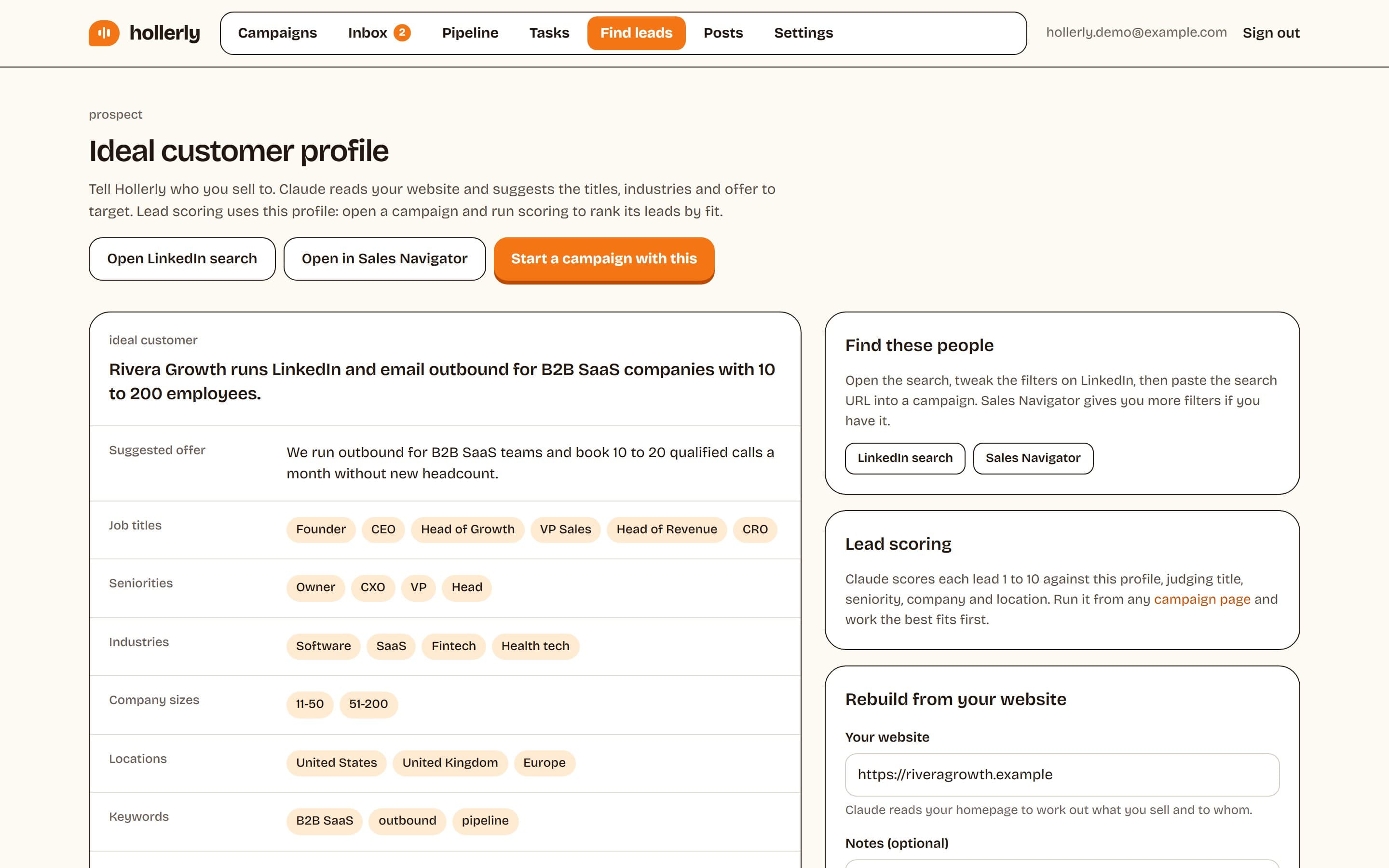
Write an ideal customer profile: role, seniority, company size, industry, region, and one trigger (new role, hiring, funding, recent post). Then turn it into a LinkedIn or Sales Navigator search. Hollerly can draft the profile from your website with AI and give you a ready search. Sales Navigator helps with filters like seniority and headcount, but LinkedIn's free search is enough for many narrow markets.
Step 3: Build a clean list
Smaller and sharper wins. Start with 200 to 500 people per campaign. Remove anyone already in another campaign, existing customers and people on your do-not-contact list. Good tools do this dedupe automatically.
Step 4: Design the sequence
| Step | Timing | Purpose |
|---|---|---|
| Visit profile | Day 1 | They see your name first |
| Like a recent post (or follow) | Day 2 | Light, genuine warm-up |
| Connection request with a short note | Day 3 | Start the relationship |
| First message | 1 day after they accept | Open the conversation |
| Follow-up | 4 to 5 working days later | Add something new |
| Email (if not accepted) | 7 days after invite | Reach them where they work |
| Final follow-up | 5 to 7 working days later | Close the loop |
Use branches: people who accept get messages, people who don't get email or a follow. Anyone who replies on any channel leaves the sequence.
Step 5: Write messages that don't read automated
This is where most automation fails. A template with only {{first_name}} filled in reads like a mass mailing. Either write templates with a slot for one real detail per person, or use AI that researches each lead. Keep connection notes under 200 characters (the free account limit; Premium allows 300). Our connection request message templates and LinkedIn connection message generator are a good place to start.
Step 6: Set safe limits
| Action | Daily | Weekly |
|---|---|---|
| Connection requests | 15 to 20 (10 to 15 for new accounts) | Around 100 |
| Messages | Up to 50 | No hard rule; keep it steady |
| Profile visits, likes, follows | Up to 40 each | Spread evenly |
| Emails from your own mailbox | Up to 40 | Warm up new mailboxes slowly |
Send only in working hours, with random gaps between actions. LinkedIn doesn't publish its weekly invitation limit; most accounts report around 100. Our connection request limit guide explains how it works.
Step 7: Review the first messages, then launch
Read the first five to ten messages before anything sends. Check names, company names, tone and length. Fix the template or the instructions, not just the single message.
Step 8: Handle replies yourself (or with help)
Replies are where meetings come from. Answer interested people within hours, not days. Tag replies (interested, not now, wrong person, unsubscribe) so you can follow up properly later.
How to automate LinkedIn outreach with Hollerly
Here's the same process in Hollerly, which runs in the cloud so your laptop can be closed. There's no Chrome extension: you connect your LinkedIn account once and Hollerly runs it from a dedicated browser with its own IP in your country.
- Profile and search: Hollerly builds an ideal customer profile from your website and gives you a ready LinkedIn or Sales Navigator search.
- Leads: paste a people search, Sales Navigator search or post URL (commenters and reactors), or upload a CSV. Duplicates and do-not-contact leads are skipped.
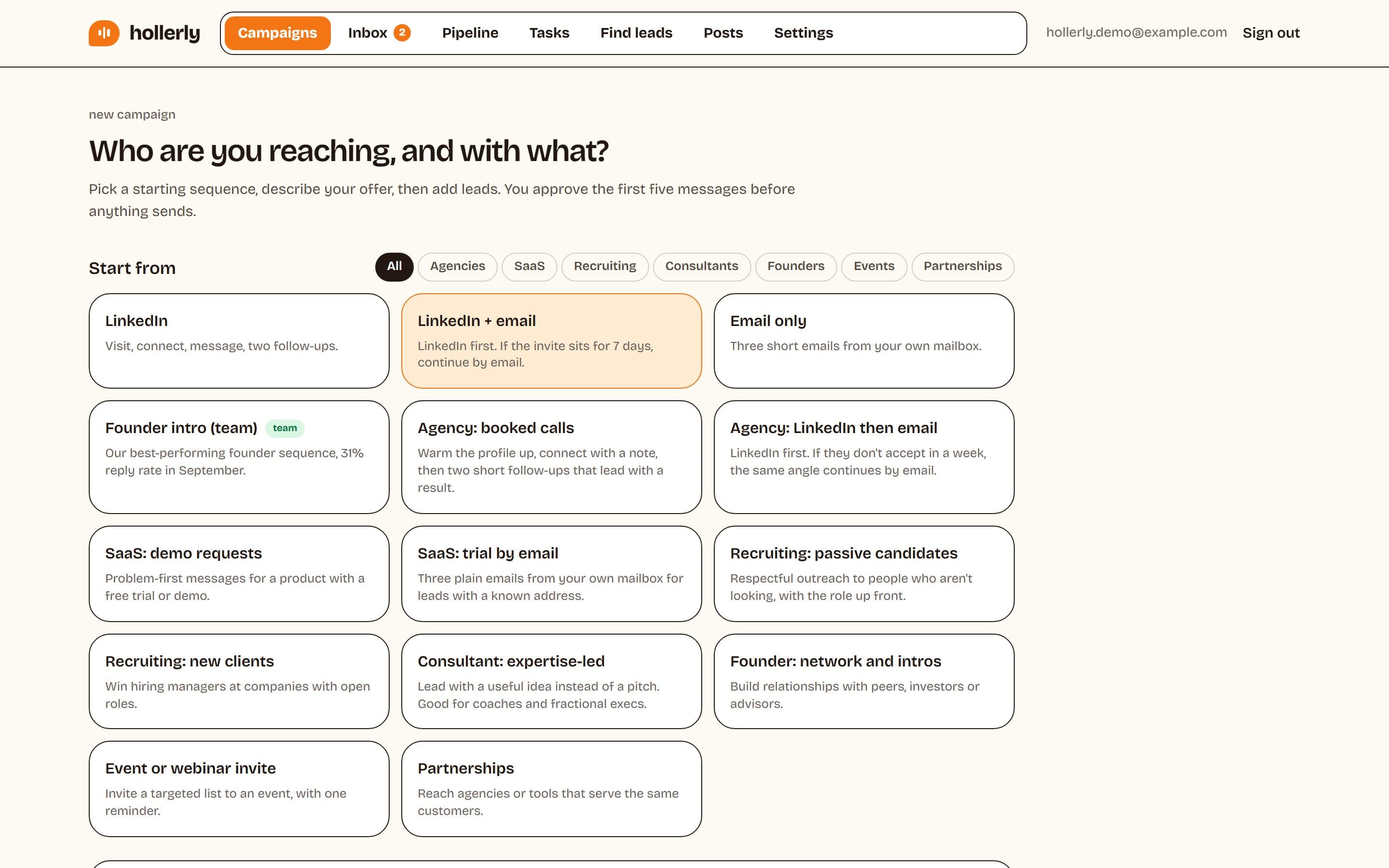
- Sequence: pick a template by use case or build your own from visit, like, follow, connect, message, endorse and email steps, with delays and branches.
- Messages: Claude writes each note, message and email from the lead's profile, latest post and company website. Or write your own with
{{variables|fallbacks}}and{spin|tax}. - Approval: you approve the first five messages, then it runs. More on this in message automation.
- Safety: 20 invitations a day by default (ceiling 30), 100 a week, warm-up for new accounts, working hours in your timezone and the prospect's, 45 to 180 seconds between actions, and an automatic 24-hour pause on any LinkedIn warning.
- Replies: replies on LinkedIn or email stop the sequence and land in one inbox. On Pro, Claude tags each reply by intent and drafts an answer.
Starter is $19 a month for one LinkedIn account; Pro, at $49, adds email from your own Gmail, Outlook or SMTP mailbox, A/B tests and CRM sync. See pricing for the full breakdown.
Mistakes that get automated accounts restricted
- Sending in bursts: 100 invitations on Monday morning instead of 20 a day.
- Running 24/7: activity at 3 a.m. every night looks like a bot because it is one.
- Low acceptance rates: broad lists mean ignored invitations, which LinkedIn counts against you.
- Piling up pending invitations: withdraw ones older than three or four weeks.
- Logging in from many places: a VPN, a shared login and a cloud tool in another country at once.
- Ignoring warnings: a verification screen means stop for a day, not try again in five minutes.
If it does happen, stop every tool, log in from your usual device and follow the steps LinkedIn shows you. Restart at half your previous pace once access is back.
How to know if your automation is working
Track three numbers per campaign, weekly:
- Acceptance rate: the share of invitations accepted. Low numbers point to targeting or your profile.
- Reply rate: the share of accepted connections who reply. Low numbers point to messaging.
- Positive reply rate: replies that show interest. This is the one that pays the bills.
Change one thing at a time: the list, the note or the first message. A/B tests help here; Hollerly's Pro plan runs them and picks the winner automatically.
Choosing a LinkedIn automation tool: a checklist
If you're comparing tools, these questions matter more than the feature list:
- Where does it run? Cloud tools work with your laptop closed and don't sit inside your browser. Extensions act on LinkedIn's pages directly.
- What are the default limits, and can you set them lower? Look for daily and weekly caps, warm-up for new accounts and working hours.
- What happens at a warning? The tool should pause on its own when LinkedIn shows a rate limit or verification screen.
- How are messages written? Templates only, or research per lead? Can you approve messages before they send?
- Does a reply stop everything? On LinkedIn and email, every time.
- How is your login stored, and is it deleted when you disconnect?
- What does it cost per LinkedIn account, and what's included at each tier?
Hollerly's answers: cloud-based with a dedicated browser and IP per account, conservative caps you can adjust within safe ceilings, automatic pauses, AI-written messages with approval of the first five, replies stop the sequence on both channels, login details encrypted with AES-256 and deleted on disconnect, and plans from $19 a month.
FAQ
+Is it safe to automate LinkedIn outreach?
Not completely. LinkedIn's User Agreement doesn't allow automation tools, and accounts can be restricted. You can lower the risk with moderate daily limits, working hours, random gaps between actions, one consistent location, well-targeted lists and a tool that pauses at the first warning. No tool is ban-proof.
+How many LinkedIn connection requests can I automate per day?
Around 15 to 20 a day is a safe range for established accounts, with 10 to 15 a day for the first two weeks on new or quiet accounts. LinkedIn doesn't publish a limit, but most accounts report a weekly cap near 100 invitations, so spread them evenly across weekdays.
+Can I automate LinkedIn outreach without a Chrome extension?
Yes. Cloud-based tools run your LinkedIn account from a remote browser, so nothing is installed on your computer and your laptop can be closed. Hollerly works this way, with a dedicated browser and an IP in your country for each LinkedIn account.
Get replies without the busywork
Hollerly finds the people, writes every message with AI and follows up on LinkedIn and email until they reply. Runs in the cloud, from $19 a month.
Start my 7-day free trial