LinkedIn InMail Explained: Credits, Cost and Templates
LinkedIn InMail is a paid message you can send to someone you're not connected to. It's useful when a connection request isn't an option, but credits are limited and a bad InMail wastes one. This guide covers what InMail means, how many credits each plan includes per month, how credits come back when people respond, what it costs, and when a normal message works better.
All plan numbers come from LinkedIn's own help and pricing pages, checked October 2, 2026. LinkedIn changes them from time to time, so check your plan page if a number matters to you.
What is InMail on LinkedIn?
In LinkedIn's words, InMail is "a premium feature" that lets you message a LinkedIn member you're not connected to. Free accounts can't send InMail. You need a paid plan such as Premium Career, Premium Business, Sales Navigator or Recruiter.
An InMail lands in the recipient's LinkedIn inbox, marked as InMail. It can have a subject line of up to 200 characters and a body of up to 2,000 characters, according to LinkedIn's InMail FAQ. The recipient can reply, accept, or decline.
How to send an InMail on LinkedIn
Here's how to send InMail on LinkedIn from a profile:
- Open the profile of the person you want to message.
- Click Message. If you're not connected and have InMail credits, LinkedIn opens an InMail.
- Add a subject and write your message.
- Send. One credit is used, and comes back if they respond within 90 days.
What does InMail mean on LinkedIn?
The LinkedIn InMail meaning is simple: "In" for LinkedIn, "Mail" for message. It's LinkedIn's name for a message sent outside your network. Inside your network, between connections, you send regular messages, which are free and unlimited within LinkedIn's normal use limits. So the short InMail meaning: LinkedIn's paid message to someone you don't know yet.
You may also see "Open Profile" messages. Some Premium members let anyone message them without using a credit. LinkedIn's settings and labels for this change over time, so check the profile: if Message is available without a credit warning, you can write to them for free.
LinkedIn InMail credits
LinkedIn InMail credits work like a monthly allowance. Each paid plan gives a set number on the first day of your billing cycle. Unused credits carry over, up to a cap, and expire after 90 days.
| Plan | InMail credits per month | Maximum you can hold |
|---|---|---|
| Premium Career | 5 | 15 |
| Premium Business | 15 | 45 |
| Sales Navigator (Core, Advanced, Advanced Plus) | 50 | 150 |
| Recruiter Lite | 30 | 120 |
Do LinkedIn InMail credits roll over?
Partly. Unused credits roll over to the next month up to the plan's maximum (for example 45 on Premium Business), and each credit expires 90 days after you get it. If you cancel your subscription, your balance goes to zero, and credits don't transfer when you change plans.
Getting credits back
LinkedIn credits an InMail back when the recipient accepts, declines or replies within 90 days of it being sent. Messages that are ignored use up the credit. That's a strong reason to write fewer, better InMails: good ones are close to free.
How many InMail credits per month? LinkedIn plans compared
If you're asking how many InMail credits per month LinkedIn gives you, it depends on the plan: 5 a month on Premium Career, 15 on Premium Business, 30 on Recruiter Lite, and 50 on every Sales Navigator plan. LinkedIn premium InMail credits per month are fixed by plan; there's no slider to choose more.
LinkedIn InMail pricing and cost
The LinkedIn InMail cost isn't a separate line on LinkedIn's price list for most members; you get credits by subscribing. Sales Navigator Core is listed at US$119.99 a month, or US$1,079.88 a year (about $89.99 a month), and includes 50 InMail credits. That works out to roughly $1.80 to $2.40 per credit if you use all of them, before taxes. Premium plan prices vary by country and LinkedIn often shows trial offers, so check the price LinkedIn shows you. Our Sales Navigator pricing guide has the full plan breakdown.
Because responded InMails are credited back, the real cost per conversation can be much lower than the cost per credit.
LinkedIn InMail vs message
| InMail | Regular message | Connection note | |
|---|---|---|---|
| Who you can reach | Anyone, outside your network | 1st-degree connections | Anyone you can invite |
| Cost | 1 credit (returned if they respond in 90 days) | Free | Free, within weekly invitation limits |
| Length | 200-character subject, 2,000-character body | Long | 200 characters free, 300 Premium |
| Needs paid plan | Yes | No | No (Premium for unlimited notes) |
| Best for | High-value people you can't connect with | Ongoing conversations | Starting a relationship |
For most prospecting, connecting first and then messaging beats InMail: it's free, the conversation stays open, and you can follow up as much as is polite. InMail earns its place for senior people who don't accept many invitations, people with full networks, and time-sensitive outreach like recruiting.
A practical combination
Many sellers use both: a connection request with a short note first, and an InMail only if the invitation is still pending after two or three weeks and the person is worth a credit. That way most conversations cost nothing, and your InMail credits go to the people who are hardest to reach. If the InMail gets any response, even a polite no, the credit comes back for your next one.
LinkedIn InMail best practices and templates
LinkedIn InMail tips
- Short subject, specific reason. "Question about your Q3 hiring post" beats "Partnership opportunity".
- Keep the body under about 100 words, even though 2,000 characters are allowed. A LinkedIn character counter helps you check.
- Lead with why them. One detail from their profile, post or company.
- Ask for a reply, not a meeting. Every response returns your credit, even "no thanks".
- Send on weekdays, in their working hours.
LinkedIn InMail sample templates
Subject: Your post on [topic] Hi {{first_name}}, your post on [topic] made a point I don't hear often: [detail]. We work with [role]s on exactly that at [type of company]. Would you be open to a two-line exchange on how {{company}} handles it?
Subject: [Role] at {{company}} Hi {{first_name}}, I'm hiring a [role] and your work on [project] is close to what we need. Not sure you're looking, so no pressure. Would you be open to a short chat this month?
Subject: Quick question, {{first_name}} Hi {{first_name}}, congrats on [news]. Teams at that stage often rethink [process]. Is that on your list this quarter? If not, a quick "not now" is helpful too.
Subject: Intro from [mutual name] Hi {{first_name}}, [mutual name] suggested I reach out about [topic]. I'll keep it short: [one-line value]. Worth a reply?
LinkedIn InMail read receipt
Read receipts on LinkedIn depend on both people's settings. If either person turned them off, you won't see when an InMail was read. Don't treat a missing "seen" as a no.
InMail subject lines and when to send
The subject line is the first thing people see, and InMail allows up to 200 characters. Use about a tenth of that. Short, specific subject lines look like a message from a person; long ones look like a campaign.
| Weak subject | Better subject | Why |
|---|---|---|
| Partnership opportunity | Question about your Q3 hiring post | Specific and about them |
| Quick call? | {{company}}'s move into [market] | Shows you did research |
| Introducing [your company] | Intro from [mutual name] | Borrowed trust |
| Exciting role! | [Role] on a 6-person team at [company] | Concrete detail |
Who to spend InMail on
- Senior buyers who accept few invitations but read their inbox.
- People with very large networks, who may have stopped accepting invitations.
- Time-sensitive outreach, like a role you need to fill this month.
- Follow-ups to pending invitations that have sat for weeks, if the person is important enough.
Who not to spend it on
Broad lists, junior roles and anyone you could simply connect with. Because only responded InMails come back, an InMail sent to a poor fit is a credit you lose. If you're using InMail as a volume channel, you'll run out within days.
Reaching more people without spending InMail
If your plan is to message dozens of people a week, InMail credits run out fast. The usual alternative is a sequence: visit the profile, engage with a post, connect with a short note, then message once they accept. If they don't accept, follow up by email.
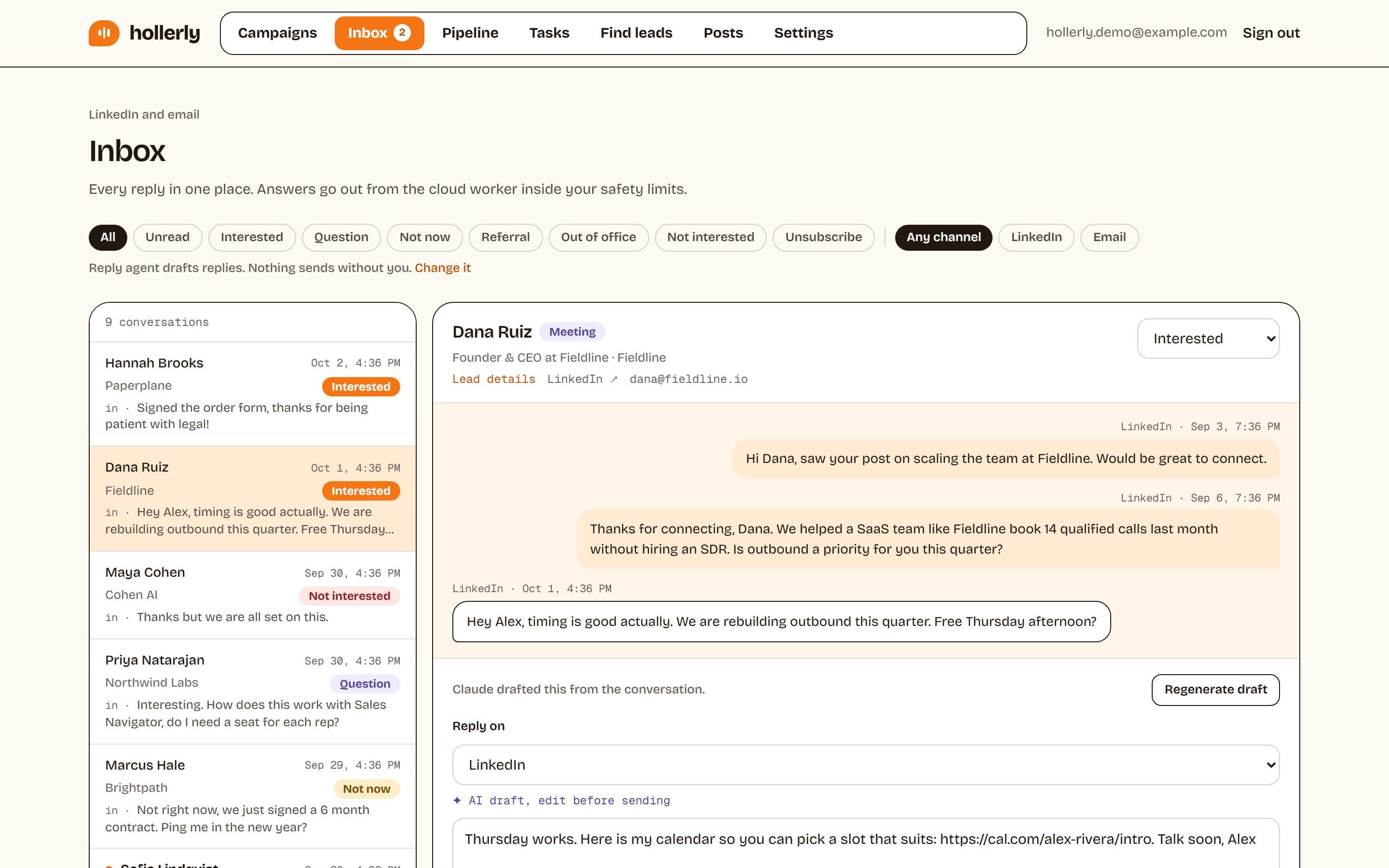
That's the flow Hollerly runs. It writes each connection note and message with AI from the person's profile, latest post and company website, sends inside LinkedIn's safe daily limits, and on Pro switches to email from your own mailbox for people who don't accept. Hollerly doesn't send InMail. See auto-connect and pricing, or grab ideas from our connection request message templates.
FAQ
+What is InMail on LinkedIn?
InMail is a paid LinkedIn message that lets you write to a member you're not connected to. It requires a plan such as Premium, Sales Navigator or Recruiter. Each InMail uses one credit, which LinkedIn returns if the recipient accepts, declines or replies within 90 days of it being sent.
+What does InMail mean on LinkedIn?
The InMail LinkedIn meaning is simple: LinkedIn's name for a message sent to someone outside your network, meaning a person you aren't connected to. Messages between connections are regular messages and free. InMail messages are marked as InMail in the recipient's inbox and need credits from a paid LinkedIn plan.
+How many InMail credits per month does LinkedIn give?
According to LinkedIn's help center, Premium Career includes 5 InMail credits a month, Premium Business 15, Recruiter Lite 30 and Sales Navigator 50. Unused credits roll over up to a cap, such as 45 on Premium Business and 150 on Sales Navigator, and each credit expires after 90 days.
+What are LinkedIn InMail credits?
InMail credits are the allowance that lets you send InMail messages. Your paid plan adds credits each month on the first day of your billing cycle. Sending one InMail uses one credit. If the recipient responds within 90 days, the credit is returned. Cancelling your plan sets your balance to zero.
+Do LinkedIn InMail credits roll over?
Yes, up to a limit. Unused InMail credits carry into the next month until you reach your plan's maximum, for example 15 on Premium Career or 150 on Sales Navigator. Each credit expires 90 days after it's issued, and your balance resets to zero if you cancel the subscription.
Get replies without the busywork
Hollerly finds the people, writes every message with AI and follows up on LinkedIn and email until they reply. Runs in the cloud, from $19 a month.
Start my 7-day free trial